
How do I get a Google Gemini / AI Studio API Key?
Getting your Google Gemini / AI Studio API key only takes a minute. Follow these simple steps:
1. Go to Google AI Studio
Open this link in your browser:
https://aistudio.google.com/
You need to be logged in with your Google account.

Screenshot: Google AI Studio homepage.
2. Open the API Keys Page
Once you're in Google AI Studio:
- Look at the left sidebar
- Click “API Keys”
This brings you to a list where you can create and manage your keys.
3. Create a New API Key
- Click the “Create API key” button
- Name your key, i.e. "MagicPhotoBooth"
- Under "Choose an imported project", select Create project and give it a name.
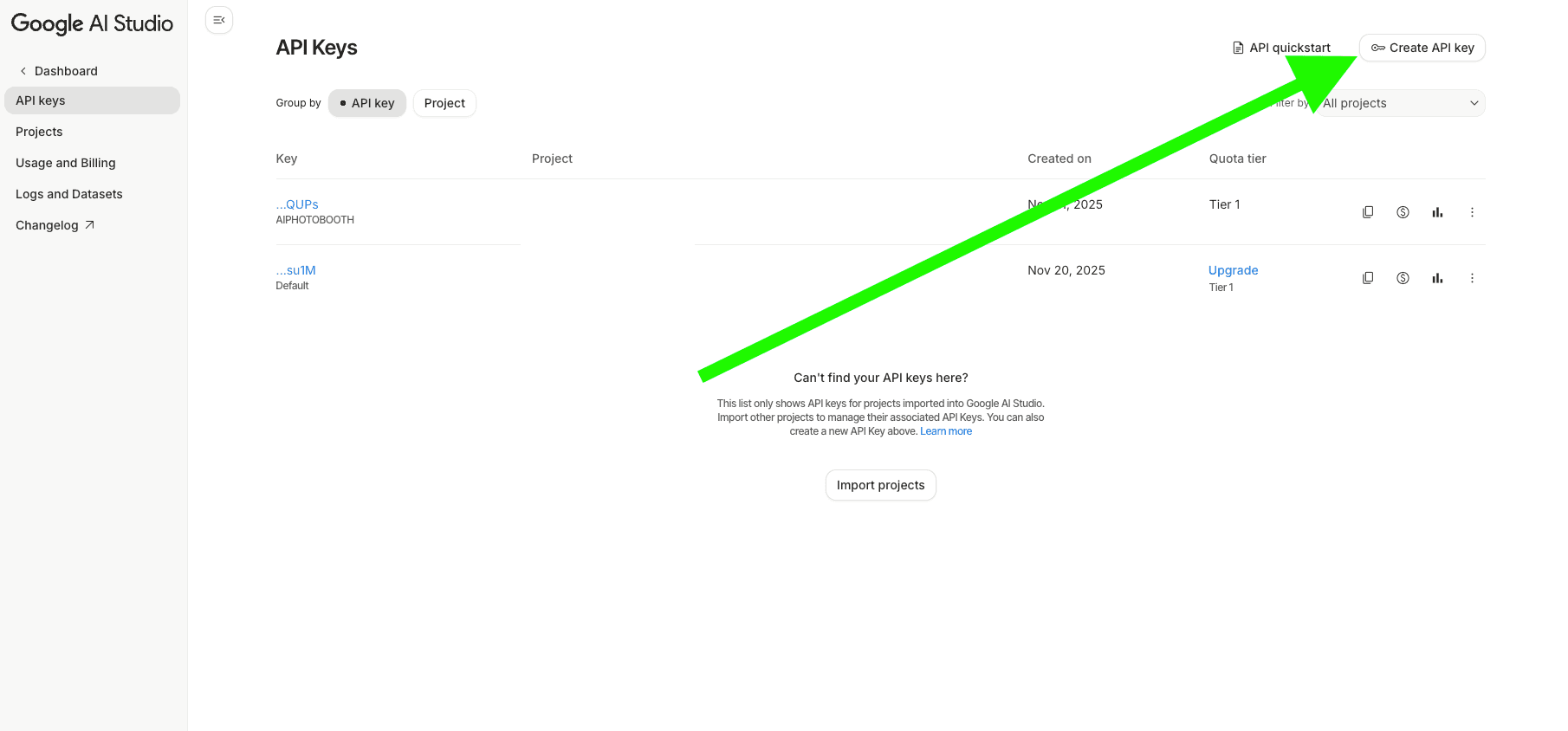
Screenshot: Create API Key.
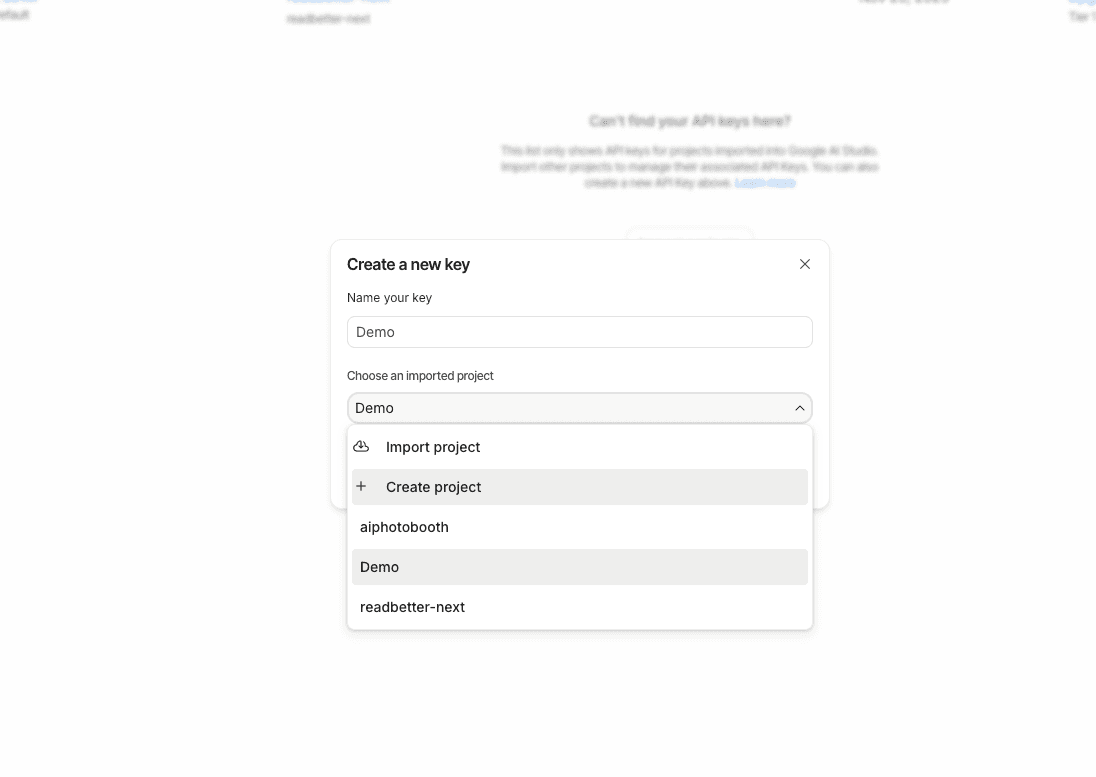
Screenshot: Create API Key Dialog.
4. Set up Billing for your project
For this AI key to work with Google's latest AI model which powers MagicPhotoBooth.party, you need to set up billing for your project.
- Click the Set up billing button.
- Follow the steps in Google Cloud to set up billing.
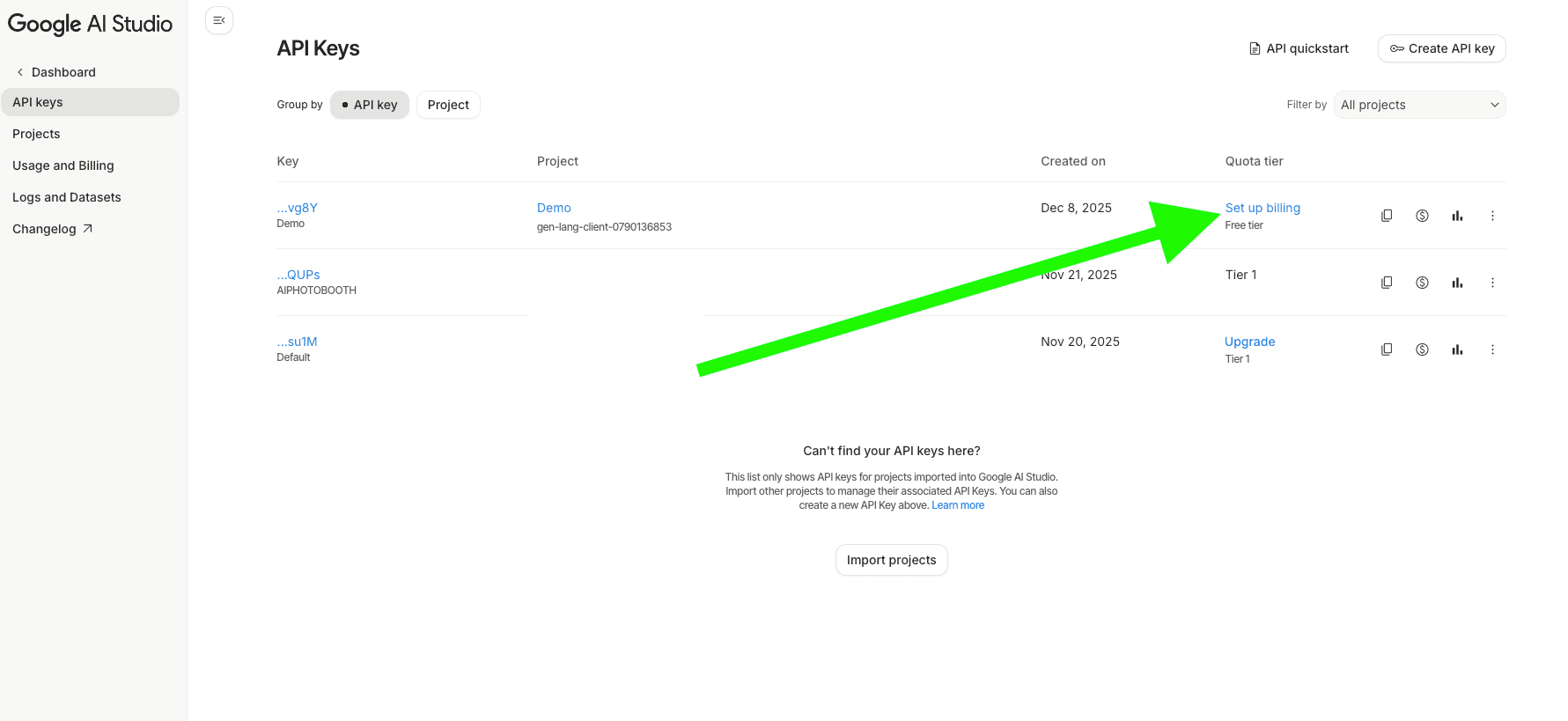
Screenshot: Set up billing.
5. Add Your API Key to MagicPhotoBooth
Finally:
- Click the Copy icon to copy your API key to your clipboard.
- Go to https://magicphotobooth.party/admin
- Open your booth’s Settings
- Find the section called “AI Configuration”
- Paste your API key there
Your API key will be stored securely and fully encrypted in our database.
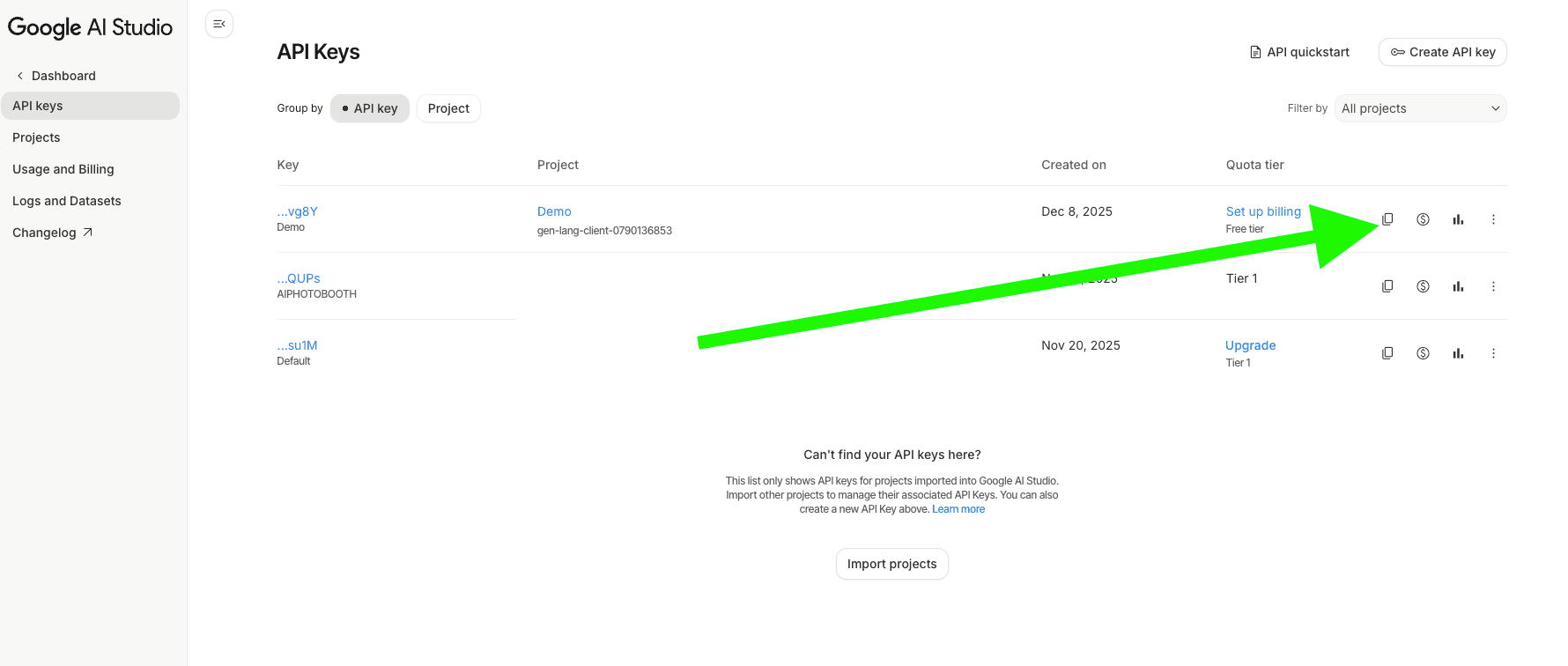
Screenshot: Copy API key.
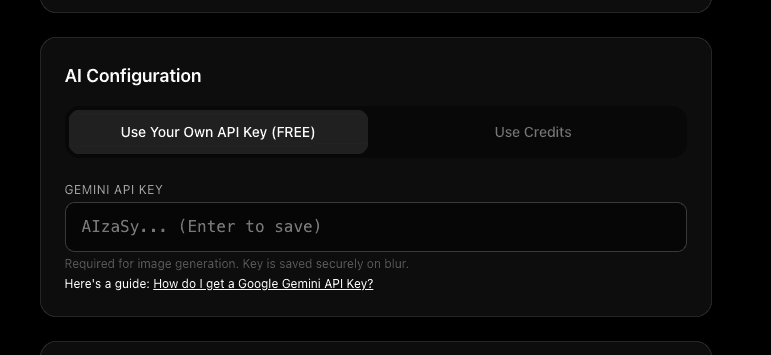
Screenshot: AI Configuration.